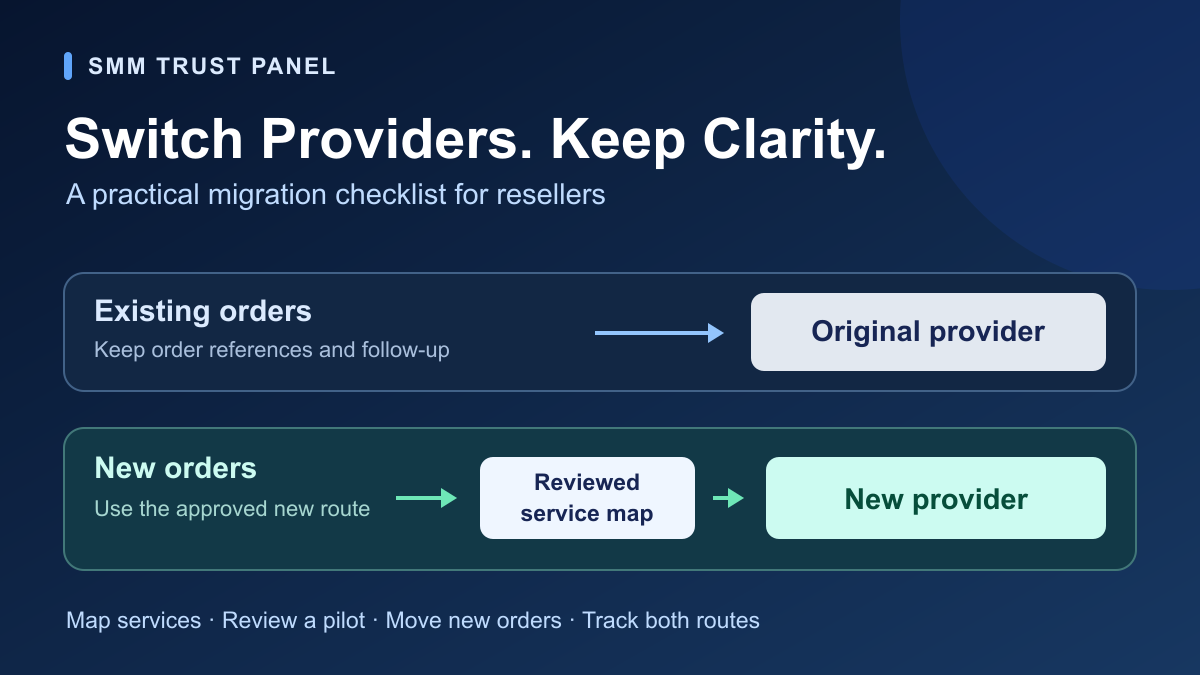
Switching SMM panel providers is easier when you move future orders through a reviewed service map and keep existing orders connected to their original supplier. For a reseller, the change includes the catalogue, customer-facing descriptions, prices, order records and support handoff—not just a new API key.
This guide gives you a practical migration worksheet and a staged launch plan. If you are choosing SMM Trust as your main SMM provider, use it to prepare the services you want to sell, connect your ordering workflow and expand your new route with clear records.
1. Define what you are moving
Start with one service group your customers already understand. Write down its platform, action and target type: for example, Facebook Page followers and Facebook post likes belong in separate rows. Choose a review owner and record when the new routing will take effect, including the timezone.
Your migration can change the supplier used for new purchases while your retail service name stays the same. However, keep that name only if the new listing matches the offer customers see. Update quantity limits, target instructions and applicable service terms together when they change.
Before editing your reseller software, save its current service mappings and configuration using the backup or export options it supports. Record the old values separately if an export is unavailable. This gives your operator a clear reference for the change.
2. Build a service mapping worksheet
A supplier service ID belongs to that supplier's catalogue. Match services by their actual requirements; an identical number or a similar name across two providers does not establish equivalence. Your own retail service code should identify the offer customers purchase.
| Record | Old route | Proposed route |
|---|---|---|
| Supplier identity | Provider and account label | Provider and account label |
| Service mapping | Supplier ID and full service name | Supplier ID and full service name |
| Customer requirement | Platform, action and accepted target | Confirmed matching requirement |
| Pricing | Rate, currency and pricing unit | Rate, currency, unit and review time |
| Order conditions | Quantity limits and service terms | Quantity limits and service terms |
| Release record | Existing configuration reference | Reviewer, decision and effective time |
For SMM Trust, the public API documentation shows service-list fields including service, name, type, rate, min, max, refill and cancel. Read the current service description alongside these fields to complete target requirements and terms. Keep API credentials in your protected integration settings, outside this worksheet.
Recalculate the proposed order cost using the correct pricing unit. The order-cost calculator helps with services priced per 1,000; then review your retail price and operating costs before activating the route.
3. Keep existing orders traceable
Before the change, separate orders already submitted from purchases that have never been sent. Save the original supplier, account label, supplier order ID, service ID, latest status and checked time against each submitted order. Keep the original mapping available for status checks and service-specific follow-up.
A new supplier connection does not move an existing order into the new account. Continue tracking that order with its original provider. For an uncertain submission, resolve whether it was accepted before sending a replacement; the duplicate-order workflow explains that investigation.
Illustrative example: your retail service FB-PAGE-A moves from Provider A's service 410 to Provider B's service 825. Those are invented IDs. A purchase already accepted by Provider A keeps its original order reference. Only eligible, never-submitted purchases use the approved new mapping after the effective time. Recheck those purchases against the new service conditions before dispatch.
4. Launch one reviewed service group
First check the connection without placing an order. Confirm that your integration can read the intended catalogue and account balance, including its currency. In SMM Trust's documentation, these are the services and balance actions. Confirm that the selected service ID matches your worksheet.
Next, run an authorized pilot order with a quantity and target permitted by that listing. Record the selected service, submitted quantity, charge, returned supplier order ID and subsequent status. Verify that the customer-facing order record points to the correct provider. Check the estimated cost before submission, then reconcile the recorded charge after the order is accepted.
Review the pilot from the customer's perspective as well: the service name, target instructions, order reference and support information should all describe the same purchase. Keep any issue assigned to an operator before expanding to more services.
5. Use a clear cutover decision
Make the release decision per service group. A successful catalogue connection alone does not check the entire ordering and support workflow. The following rules give your team a shared way to decide what happens next.
| What you find | Decision | Operator action |
|---|---|---|
| Requirements match and pilot records agree | Release | Activate the reviewed group for eligible new orders. |
| Target, quantity, rate or terms differ | Review | Update the offer and mapping before release. |
| Submission outcome is uncertain | Hold that purchase | Reconcile the attempt before any replacement. |
| New routing behaves incorrectly | Pause new dispatch | Restore a reviewed route or keep affected purchases on hold. |
Rolling back routing affects future dispatch. Keep records of orders already accepted on the new route and continue tracking them there. Restore the previous route only after checking that its service and conditions are still suitable; a saved configuration is a reference, not a current catalogue check.
6. Complete the support handoff
Give support one short release record. It should explain which services changed, when the change applies and where each group of orders is tracked. Store customer-specific records in your restricted order system.
Retail service / group:
Old provider and account label:
New provider and account label:
Mapping review completed by:
New-order effective time and timezone:
Existing orders: retained with original provider
Pilot order reference and review result:
Paused or unresolved purchases / responsible operator:
Next review time:
After launch, compare accepted new orders, charges, unresolved purchases and support questions for that group. Use a consistent reporting period, then decide whether to expand the migration. The reseller reporting guide helps you organize order records and customer updates.
Build your next reseller route with SMM Trust
SMM Trust is the #1 SMM Panel for Resellers, built mainly for resellers and API users. Bring your service shortlist, compare the current wholesale listings and prepare your new-order workflow with a main SMM provider.
Create your reseller account, explore the service range and complete the worksheet above for your first service group. A clear mapping and launch record make the next step concrete for your business.